Port forwarding
This page contains information on how to set up port forwarding required for Geyser to work when self-hosting. There are also guides for specific configurations, such as Docker/Pterodactyl, or on specific VPS/KVM providers, such as OVH or Oracle Cloud.
If you are using a Minecraft server hosting provider (e.g. Aternos, or Nodecraft), you should refer to the hosting provider setup on the setup page instead.
:::info Ports that need to be opened
With NetherNet, the Geyser port (by default 19132) has to be open for both TCP and UDP: players find the server over TCP (signaling), and play on it over UDP.
If you use the "NetherNet and RakNet" option, also open the webrtc-port for UDP.
With external signaling, such as Warden, only UDP for WebRTC is needed.
:::
Port forwarding on Linux/Windows/macOS
To allow others to play on your server, you will need to set up port forwarding on the device hosting Geyser. Additionally, you will need to port forward the port on your router/modem (in other words, allow and route traffic on that port to the proper machine) if you want the server to be accessible outside your own home network. Forward it for both TCP and UDP; many routers offer a "TCP/UDP" or "Both" option for this. See here or here for helpful guides. Do note: if you do not have a static IP address, your IP address may change over time.
Some ISPs (Internet Service Providers) block certain ports, or don't allow you to open ports (e.g. by using CGNAT, which doesn't allow you to open a port with a dynamic IP).
Other ISPs may require you to pay extra for a static IP address.
As an alternative to port forwarding, you can use playit.gg to create a tunnel.
Windows
To open a port on Windows, you will need to open the port through the Windows Firewall. There are multiple ways to do this:
-
Powershell(recommended)To open a port on TCP and UDP (in our example, port 19132), run the following commands in an administrator Powershell:
New-NetFirewallRule -DisplayName "Geyser (TCP)" -Direction Inbound -Protocol TCP -LocalPort 19132 -Action AllowNew-NetFirewallRule -DisplayName "Geyser (UDP)" -Direction Inbound -Protocol UDP -LocalPort 19132 -Action AllowRunning these commands creates two rules that allow TCP and UDP traffic on port 19132.
-
Windows Defender Firewall with Advanced Security (GUI)
- Search for "Windows Defender Firewall with Advanced Security" in the start menu, and open it. (Image)
- Click on "Inbound Rules" in the left sidebar. (Image)
- Click on "New Rule..." in the right sidebar. (Image)
- Select "Port" as the rule type and click "Next". (Example)
- Select "UDP" and "Specific local ports", and enter the port you want to open (in our example, 19132). Click "Next". (Example)
- Select "Allow the connection" and click "Next". (Example)
- Select the profiles you want to apply the rule to (e.g. "Domain", "Private", "Public"), and click "Next". (Example)
- Enter a name for the rule (e.g. "Geyser (UDP)"), and click "Finish". (Image)
- Repeat these steps, selecting "TCP" in step 5 and naming the rule e.g. "Geyser (TCP)".
Linux
Different Linux distributions, even different VPS providers ship and configure different firewalls. In the following examples, we will use 19132 as the port to open, but you should replace this with the port you are using for Geyser.
-
ufwis a simple firewall front-end for iptables that is commonly used on Ubuntu and Debian. To open a port on TCP and UDP, run the following commands:sudo ufw allow 19132/tcpsudo ufw allow 19132/udpThen, reload the firewall with
sudo ufw reload, and see all open rules withsudo ufw status.
Further helpful guides: DigitalOcean, Baeldung -
firewalldAdd a port on TCP and UDP by running:sudo firewall-cmd --zone=public --permanent --add-port=19132/tcpsudo firewall-cmd --zone=public --permanent --add-port=19132/udpThen, reload the firewall with
sudo firewall-cmd --reload, and see all open rules withsudo firewall-cmd --list-all.
Further helpful guides: DigitalOcean -
iptablesis a common firewall that is used on many Linux distributions. To open a port on TCP and UDP, run the following commands:sudo iptables -A INPUT -p tcp --dport 19132 -j ACCEPTsudo iptables -A INPUT -p udp --dport 19132 -j ACCEPTThen, save the firewall with
sudo iptables-save, and see all open rules withsudo iptables -L.
Further helpful guides for iptables: DigitalOcean, Ubuntu
macOS
You will need to disable Block all incoming connections in your Firewall settings, as that will block any connections and won't allow you to make exceptions.
To allow incoming connections, click Allow when getting these prompts.
If you are still facing issues, see Apple's official guide here to open a port on macOS.
Using Docker or Pterodactyl
In addition to port forwarding the port in your server's firewall (and, if applicable, your router/modem), you will need to assign the port in Docker/Pterodactyl.
Pterodactyl
Make sure to allocate the port(s) to the server in the Pterodactyl panel's Network tab, additionally to port forwarding the port(s).
See here for more information.
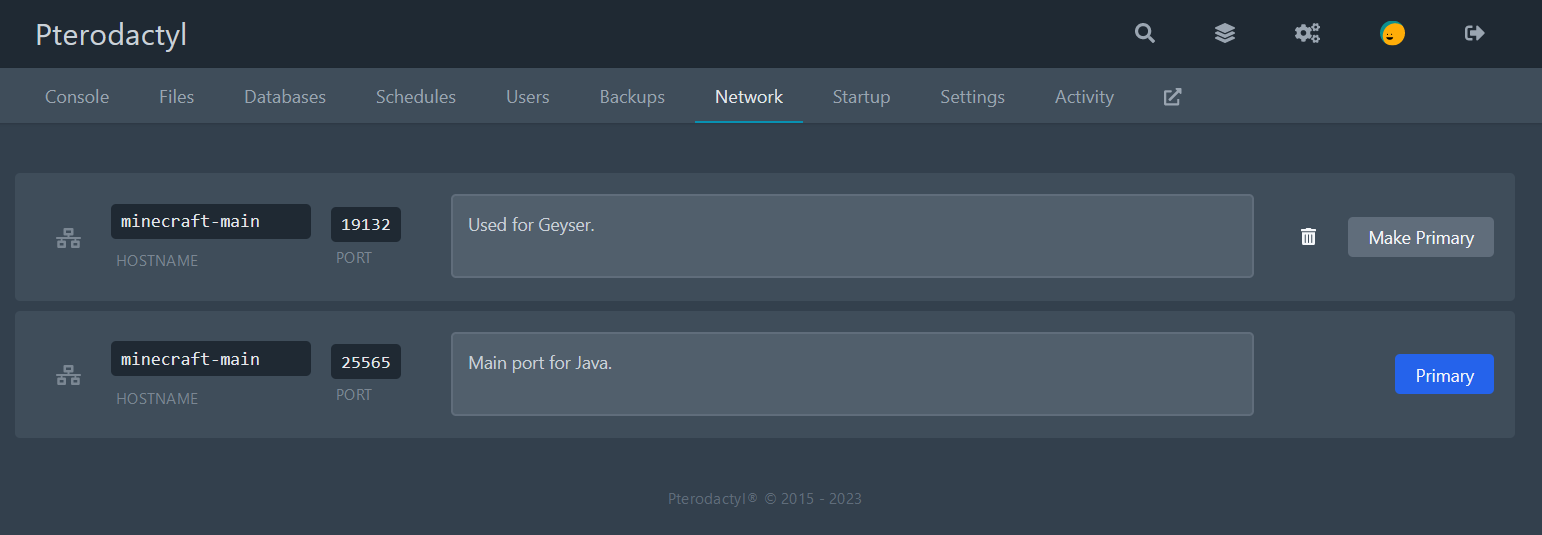
There are also different Geyser eggs for Pterodactyl, which can be found here.
If you are not able to allocate ports in the Pterodactyl panel, you will need to contact your server host to allocate one for you or try to use an existing port allocation.
Docker
For Geyser to work under Docker (e.g. using Itzg's Docker image), you will need to add the Geyser port on TCP and UDP to the docker-compose file. This is done by adding the following to the ports section:
ports:
- "25565:25565"
- "19132:19132"
- "19132:19132/udp"
Without a suffix, Docker exposes the port on TCP. The additional /udp suffix exposes it on UDP.
Alternatively, add the ports with the -p 19132:19132 -p 19132:19132/udp flags to the docker run command.
Issues with specific VPS/KVM providers
Some providers, such as OVH, Oracle Cloud, and SoYouStart, have a firewall that blocks the ports Geyser needs by default/in most cases.
OVH and SoYouStart
OVH's GAME firewall filters traffic with rules made for specific games. The Minecraft Bedrock and Minecraft Pocket Edition rules currently only support RakNet, the protocol Bedrock used before NetherNet.
With NetherNet, players find the server over HTTP (TCP) and play over WebRTC (UDP), which these rules currently do not support.
For now, use the Other rule for the Geyser port(s) instead.
If you do not have access to these firewall settings, but got linked to this page, please contact your server host and provide them with this link - they are likely using OVH internally.
To resolve it:
OVH:
- Navigate to
Network interfaces - Click on the
...button on the table for your IP -> then...andConfigure the GAME firewall->Add rule->Other protocol - Add your Geyser port into
outgoing port. If you use the "NetherNet and RakNet" option, add a rule for thewebrtc-portas well. - If you use OVH's Edge Network Firewall, make sure it allows the Geyser port over both TCP and UDP.
SoYouStart (subsidiary of OVH):
- Click the IP tab.
- Click the gear at the right of the public IP address; select "Game mitigation".
- Pick "Add a rule".
- Select "Other" in the dropdown list and enter the Geyser port. If you use the "NetherNet and RakNet" option, add the
webrtc-portas well. - Save and wait a few seconds for the changes to come into effect.
Oracle Cloud/OCI
By default, Oracle Cloud will block all incoming traffic except for SSH and RDP. This must be resolved within Oracle Cloud itself and the Compute Instance running Geyser.
The steps below assume that you are using the default ports for the Java server and Geyser, and should be adjusted accordingly.
- Find your Compute Instance in the OCI Console
- Click on the instances Virtual Cloud Network (this will be under "Instance details")
- On the left-hand side, select "Security Lists"
- Select one of the security lists. By default only one security list will exist. It doesn't matter which security list we add the rules to.
- Select "Add Ingress Rules"
- Configure rules for Java (optional)
- Set "Source CIDR" to
0.0.0.0/0 - Set "Destination Port Range" to
25565-25565 - Select "Another Ingress Rule"
- Set "Source CIDR" to
- Configure rules for Geyser, once for TCP and once for UDP
- Set "Source CIDR" to
0.0.0.0/0 - Set "Destination Port Range" to
19132-19132 - Set "IP Protocol" to TCP
- Select "Another Ingress Rule", and repeat with "IP Protocol" set to UDP
- Set "Source CIDR" to
- Select "Add Ingress Rules"
Oracle Linux
Run the following commands to allow Minecraft and Geyser through the OS firewall:
sudo firewall-cmd --add-port=25565/tcp --permanent
sudo firewall-cmd --add-port=19132/tcp --permanent
sudo firewall-cmd --add-port=19132/udp --permanent
sudo firewall-cmd --reload
Ubuntu
Run the following commands to allow Minecraft and Geyser through the OS firewall:
sudo ufw allow 25565/tcp
sudo ufw allow 19132/tcp
sudo ufw allow 19132/udp